
Setting up an Eclipse-based Java Development Environment on WinXP (Part 2)
Posted : June 30, 2004 at 3:58 pm [America/Los_Angeles]
Version History:
Date: 07/01/2004
Version: 0.2
Notes: Updated the creation of custom perspective section. Thanks to Vasanth Dharmaraj for pointing this out.
Date: 06/30/2004
Version: 0.1
Notes: Original post
In my last post (Part 1) of this series, I had spent some time listing softwares that needed to be installed as part of the Java development environment setup and going over a few installation and post-installation details. In this entry, the focus is on configuring Eclipse. Specifically, on:
- Setting up a custom Perspective and making it your default Perspective, and
- Tweaking Eclipse preferences where necessary
When Eclipse is launched for the very first time, it brings up a “Workspace Launcher” dialog box, essentially asking you to select a “workspace”. I prefer setting up a seperate folder ( D:\development-root\tools\eclipse-workspace\1) as my default workspace. Upon selecting the default workspace and clicking OK, Eclipse brings up a “Welcome to Eclipse 3.0″ page. Feel free to browse its content if you must. Personally, I just click on the arrow at the top-right hand corner (”Go to the workbench”) and move along.
Setting up a custom perspective and making it the default:
Eclipse, by default, opens up the “Resource” perspective. Switch to the “Java” perspective by selecting Window | Open Perspective | Java. The default Java perspective looks as shown in the figure below:
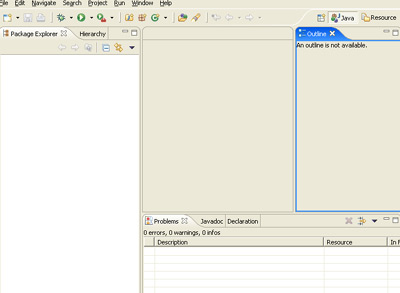
Eclipse comes with a lot of views (Window | Show View | Other..). After a little trial and error, I decided upon creating a custom “Java” perspective with views as shown below:
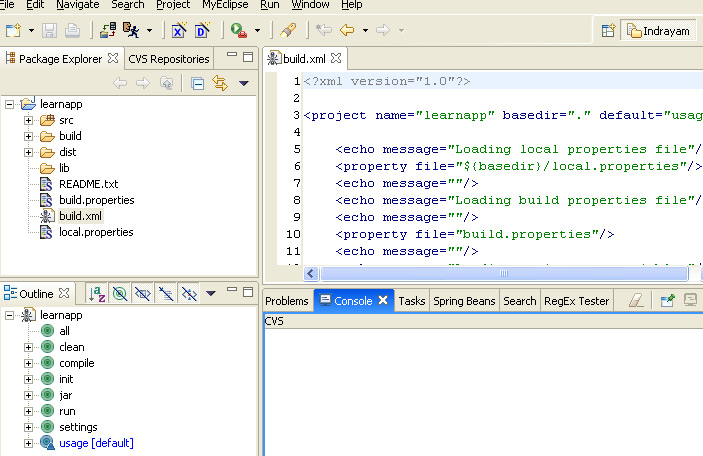
Click on the image to enlarge
To set up a custom perspective, here are the steps that I followed:
- Make sure you’re in Java perspective.
- Open all the views that you would like to add to your custom perspective (Window | Show View | Other..). Once open, move the views around until they are arranged in a way that feels right to you. The figure above shows how I prefer arranging the views in my custom perspective.
- Go to Window | Save Perspective As… and enter a name for this perspective. Click OK.
- Now, that you’ve your very own perspective, let’s make sure Eclipse opens this perspective everytime we open it up. For that, go to Window | Preferences | Workbench > Perspectives. Under Available Perspectives, select your custom perspective and click on the Make Default button. Click Apply, and then OK and you’re all set!
Tweaking Eclipse preferences:
All Eclipse preferences are neatly stacked under Window | Preferences menu option. So, how do I share the tweaks that I made to Eclispe? I could take a whole bunch of screenshots. Or, I could just list out the tweaks that I made in a text document. The first option, although visual and probably easy for the end user to understand, was ruled out as it would be a disk-space hungry solution. I decided to take the second route. However, before I unleash the changes, let’s try to understand how did I go about documenting it:
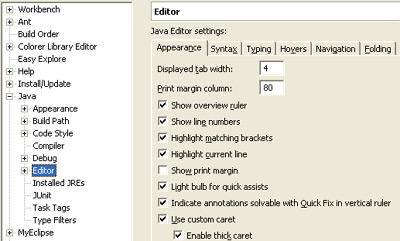
Now, suppose I wanted to document the fact that under Java | Editor | Appearance Tab, Show Line Numbers is checked (see figure above). The way I do it in my document is as follows:
Java
-----
Java > Editor
   [Appearance]
      Checked "Show Line Numbers"
With that said, here’s the list of all the tweaks that I made after my default install. Please feel free to add/edit/change my tweaks to suit your needs.
That’s it. Feel free to reflect on all the things you’ve done so far and make any changes that you think would make things even easier for you. Frankly, I would strongly encourage you to treat the set up of your development environment as an iterative process which you ought to keep doing as you get more and more into serious Java development. Remember, these are just tools which are there to make your actual task - writing Java applications - simpler. If they do, great. If they don’t or hinder the process more than help, feel free to re-think your whole development environment set up.
In Part 3, I plan on covering how to set up and write a stand-alone Java application. In Part 4, the discussion would focus on setting up and writing a web-based application.
- Anand
Category: Application Development
7 Comments
Hi!
My name’s Carthik Anand Sharma. I got here by means of a link to “Anand Sharma’s Blog” from another website. There is no point to this comment, besides the fact that I found it amusing to find someone who shares 2/3 of my name, and who blogs, and what’s worse, who develops software too
My blog is at http://blog.carthik.net
See you!
Posted by: Carthik at June 30, 2004 @ 5:03 pm
- Anand
Posted by: Anand Sharma at June 30, 2004 @ 7:05 pm
Anand,
This is a very interesting series. It the first part you mentioned about storing eclipse configurations in eclipse-config folder. How do you do that?
I noticed that you have customized the ‘Resource’ perspective. I think you will miss out on a few java specific features if you are using a non-java perspective. One thing I know of is that the shortcut for ‘Open Type’ dialog ((Ctrl + Shift + T) which I use frequently) does not work in it. Maybe there are more.
You might also be interested to know that you can put all the plugins you install in a separate folder and link to it. This makes upgrading easier. I have blogged about it here.
Posted by: Vasanth Dharmaraj at July 1, 2004 @ 12:19 am
Interesting, very very interesting point Vasanth! Frankly, I have always used (Ctrl + Shift + R) for everything and never really missed out on anything. At least, not yet..:-)
However, I do see your point. So, let me ask you this: What do you do? Do you pick the “Java” Perspective, customize the way you want it (by adding/removing views) and then overwrite the Perspective definition, as opposed to saving it as a custom Perspective.
The reason I ask is, if Ctrl + Shift + T and potentially other Java related features are actually tied to the Perspective definition, why would someone create a custom Perspective, since a custom perspective would never be able to capture the definitons tied to Java (or other) Perspectives.
To be really honest, up until I read your post, I was treating Perspectives as nothing more than a dumb JPanel or JCanvas in Java Swing API, something on which other objects (in this case, Views) reside. I really was not attributing any special behavior, like availability of extra Menu options etc. to a Perspective. Come to think of it, that was dumb of me.
Anyway, would luv to hear how do you customize (if at all) your perspective and preserve the intrinsic capabilities of the perspectives at the same time.
Thanks for the comment!
- Anand
Posted by: Anand Sharma at July 1, 2004 @ 1:28 am
Anand,
I just read the comments in part 1 of the series. That explains the eclipse configuration. And you already know about seperating the plugins.
I take the Java perspective customize it and save it as a custom perspective. It retains the features specific to Java perspective.
Posted by: Vasanth Dharmaraj at July 1, 2004 @ 1:43 am
Somehow, when I did a quick try last night before commenting on your post (customizing Java perspective and saving it as ‘xyz’), it seemed to have no effect.
Will test it out, and if it works, I will update the blog entry
Thanks Vasanth!
- Anand
Posted by: Anand Sharma at July 1, 2004 @ 5:41 am
Yup, works like a charm. Updated the entry to reflect the creation of a custom “Java” perspective, with a little version history added at the top of the entry.
Thanks Vasanth!
- Anand
p.s. I need to update Part 1 of this series to reflect using Rolf and your idea of seperating the Eclipse plugins out of ECLIPSE_HOME. May be later tonight or early tomorrow morning.
Posted by: Anand Sharma at July 1, 2004 @ 12:18 pm