
Setting up an Eclipse-based Java Development Environment on WinXP (Part 1)
Posted : June 29, 2004 at 7:48 pm [America/Los_Angeles]
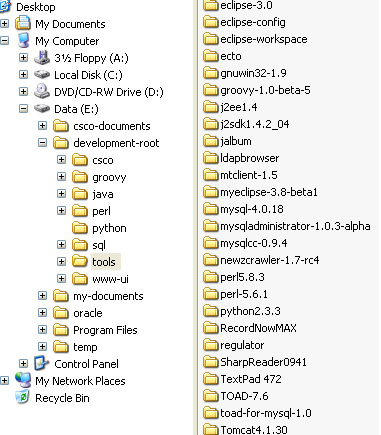
Goal:
- To set up an Eclipse-based development environment in order to facilitate Java development of standalone applications and/or web-based applications
- Focus on getting the development environment set up with the right tools once, thereby freeing the developer to focus on his/her real challenge - writing code

Assumption:
The goal here is not to present the “one-and-only perfect” way there is of setting up a development environment on WinXP. It’s just “a” way of doing it.
Folder structure:
I tend to keep my OS on C:\ and my applications on D:\. If you just have a single C:\ drive on your PC, replace D:\ with C:\ everywhere in the rest of this blog entry:
- Top-level folder containing all your development code and softwares - D:\development-root
- Folder containing all your development tools (Java or non-Java related)- D:\development-root\tools
- Folder containing Java development code, APIs - D:\development-root\java
- Folder containing Java development APIs - D:\development-root\java\apis (I like to keep a local copy of the APIs I normally use for development. These APIs are not added to any CLASSPATH. They’re just downloaded for the convenience of copying and pasting jars whenever I want to use them in a project)
- Folder containing Java application development code - D:\development-root\java\myapps
- Folder containing Java application development code - D:\development-root\java\mywebapps
Software Requirements:
Note:
Install all these softwares in D:\development-root\tools (and not the usual D:\Program Files\) in order to make it visually easier for you to know which softwares/tools are installed for development purposes.
- JSDK (latest stable version: 1.4.2_04)
- Ant (latest stable version: 1.6.1)
- (Optional) Ant plugins - Checkstyle (latest stable version: 3.4), Java2Html (latest stable version: 4.1), PMD (latest stable version: 1.8) and JUnit (latest stable version: 3.8.1)
- Eclipse (latest stable version: 3.0)
- Eclipse plugins:
- MyEclipse (commercial, latest stable version: 3.8 beta1) For J2EE development. Note: I primarily use it as a JSP, Javascript, CSS, TLD, DTD editor
- XMLBuddy For XML file editing.
- Colorer Basically a general-purpose syntax highlighter (supporting bazillion formats and languages)
- GEF (Graphical Editing Framework). Pre-requisite for Spring UI plugin (see the next entry).
- Spring UI plugin. Install it if you’re planning on using Spring API in your development. Install using Eclipse’s Update Manager:
Help -> Software Updates -> Find and Install… -> Search for new features to install -> Add Update Site…
Name : Spring IDE
URL: http://www.springframework.org/spring-ide/eclipse/
- Easy Explorer. For quick access to Windows explorer from within Eclipse. Install it using Eclipse’s Update Manager:
Help -> Software Updates -> Find and Install… -> Search for new features to install -> Add Update Site…
Name : Easy Explorer
URL: http://easystruts.sourceforge.net/eclipse/updates/site.xml
- Jalopy (commercial, latest stable version: 1.2)
- VeloEclipse. Install it if you’re planning on using Velocity templates in your development. Install using Eclipse’s Update Manager:
Help -> Software Updates -> Find and Install… -> Search for new features to install -> Add Update Site…
Name : VeloEclipse
URL: http://propsorter.sourceforge.net/veloeclipse
- RegEx Tester Install it if you’re planning on using Regular expressions a lot in your development.
- Tomcat (latest stable version: 4.1.30 or 5.0.25)
- Tortoise CVS (latest stable version: 1.6.14)
Installation notes:
Instead of boring you with obvious details about how to install JSDK or Eclipse, I will just make a few points in general:
- The list above lists all the plugins that I tend to use. If you would like to use a few more or less than the ones listed above, be my guest.
- Installation of Eclipse is really simple. Download Eclipse in D:\temp, unzip it and then move the unzipped folder into D:\development-root\tools. That’s it! Let’s say, you install it in D:\development-root\eclipse-3.0. I tend to create 2 extra folders besides the default eclipse-3.0: eclipse-workspace and eclipse-config. eclipse-workspace has 2 sub-folders - 1 and 2. I use these folders as my workspaces. Of course, I mainly use D:\development-root\tools\eclipse-workspace\1 as my primary workspace and keep 2 for cases when I want to have more than one Eclipse projects opened at the same time. eclipse-config is created to store my eclipse configurations.
- Installing Eclipse plugins is equally straightforward. Most of the time, it’s as simple as - Download the plugin, unzip it, copy the contents of ‘plugins’ folder into D:\development-root\tools\eclipse-3.0\plugins and the contents of ‘features’ folder (if any) into D:\development-root\tools\eclipse-3.0\features. If no plugins or features folder exists on unzipping, just take the unzipped content and put it into D:\development-root\tools\eclipse-3.0\plugins folder. Of course, you could also use the Eclipse Update Manager.
- While installing Tomcat, I tend to de-select the “Install it as a Service” option. I think by default it is de-selected. Since this is a development workstation, I don’t prefer installing it as a service as you’ll see why a bit later. Yes, I do install Tomcat in D:\development-root\tools.
- While installing a few these softwares, I get prompted to enter the path where the software should be installed. Besides making sure that they’re all in D:\development-root\tools, I also tend to name the folder as
- . So, for example, Eclipse is installed in a folder called D:\development-root\eclipse-3.0. Look at the screenshot above for an example. This makes it easy for me to know what version of a software I am currently running. Avoid spaces in names of the folders as much as possible! - After installing JSDK and Ant, make sure that you set up the following two environment variables - JAVA_HOME and ANT_HOME, each pointing to the respective top-level install folder. For example, in my case:
JAVA_HOME=D:\development-root\tools\j2sdk1.4.2_04
ANT_HOME=D:\development-root\tools\apache-ant-1.6.1- Installing Ant plugins usually involves copying the plugin’s jar into Ant’s lib folder. For example, to install CheckStyle as an Ant plugin, copy checkstyle-all-3.4.jar to D:\development-root\tools\apache-ant-1.6.1\lib and you’re all set.
- After installing JSDK and Ant, make sure that you set up the following two environment variables - JAVA_HOME and ANT_HOME, each pointing to the respective top-level install folder. For example, in my case:
Post installation notes:
At this point, you should have all the softwares downloaded and installed. There’s just two more things that I often do which I think you’ll find useful as well. However, before I proceed, let me warn you - I am a huge fan of Windows Quick Launch Bar. If you don’t use it at all, tweak the explanations given below accordingly to make it work with your desktop shortcuts or whatever other mechanism you use to invoke a software on Windows.
- Create a Quick Launch Bar shortcut for D:\development-root\tools\eclipse-3.0\eclipse.exe. Right-click on the Eclipse icon on the Quick Launch Bar, select Properties and you will see the following in your Target: textfield:
D:\development-root\tools\eclipse-3.0\eclipse.exe
Replace it with:
D:\development-root\tools\eclipse-3.0\eclipse.exe -vm “C:\Program Files\Java\j2re1.4.2_04\bin\javaw.exe” -vmargs -Xverify:none -XX:+UseParallelGC -XX:PermSize=20M
Of course, if your JVM path is different, tweak is accordingly in the entry above. I got this tip from Matt’s blog. However, I can’t seem to get the exact entry as his search seems to be messed up. Oh well.. - Create a Quick Launch Bar shortcut for D:\development-root\tools\Tomcat-4.1.30\bin\startup.bat and D:\development-root\tools\Tomcat-4.1.30\bin\shutdown.bat. This allows me to quickly start and stop Tomcat instance. This is why I don’t prefer installing Tomcat as a service.
That’s it for Part 1 of this entry. In Part 2, I will talk about configuring Eclipse and setting up two Eclipse projects: a standalone Java application and a Struts-based (struts-example, part of Struts download) application.
Enjoy!
- Anand
Category: Application Development
4 Comments
I find this verry interesting. what i also try to do is to seperate the extra plugins from the eclipse directory and in that directory I have two subdirs. One for the eclipseplatform itself (VEP, EMF etc.) and one for custom plugins (Jfacedbc, etc.).
I was wonderingin though. How do you let eclipse know where the config dir is if it is not in a sub directory of eclipse?
cheers Rolf
Posted by: Rolf at June 30, 2004 @ 10:36 pm
Rolf:
Interesting point about seperating out the plugins.
As for storing the Eclipse config, I guess my entry was not very clear. I did not mean that I store the config outside of the ECLIPSE_HOME (D:\development-root\tools\eclipse-3.0) and make Eclipse read it from there. What I really meant was that I store a backup/export of my Eclipse config in ‘eclipse-config’ directory so that I can use it for other Eclispe install. Apologize for the confusion. Will update the entry soon to reflect that.
Also, I would really like to know how you seperate out the plugins that you install and keep them outside of ECLIPSE_HOME.
Thanks for the comment.
- Anand
Posted by: Anand Sharma at June 30, 2004 @ 11:53 pm
Anand,
It is quite simple with one issue I’m still trying to fix but it works if you do it like this.
Create in the eclipse_home dir a new directory called links. In here you can create as many files as you want to link different plugin directories. mine are called eclipse-platform.plugins and eclipse-addon.plugins.
In those files I set the following text:
path=<pathwithforwardslashestospecificplugindir>
This is handy when you do an upgrade an do not want to remove the plugins you are using (If the plugins still work for that version of eclipse that is).
The issue is that i must install the plugin by hand before i can use update. Otherwise the new plugin will be installed in the default plugindir under eclipse_home.
Rolf
Posted by: Rolf at July 1, 2004 @ 12:21 am
Thanks Rolf. Will check it out and let you know if it works out well.
- Anand
Posted by: Anand Sharma at July 1, 2004 @ 1:16 am