
HOWTO: Capturing still images from Windows Media Player (8.x/9.x)
Posted : November 18, 2004 at 10:08 am [America/Los_Angeles]
If you’ve ever tried capturing a still image from a Windows Media Player (WMP), you know it’s not as simple as pressing ‘Print Screen’ or ‘Alt+Print Screen’ button while the movie is playing. If you’ve no clue what I am talking about, here’s a little test you can run yourself.
Assumptions:
1. You’re on a Windows platform
2. You’ve your browser configured with Windows Media Player (8.x/9.x) plugin
3. You’re connected to the Internet
Steps to perform the test:
1. Open your favorite browser
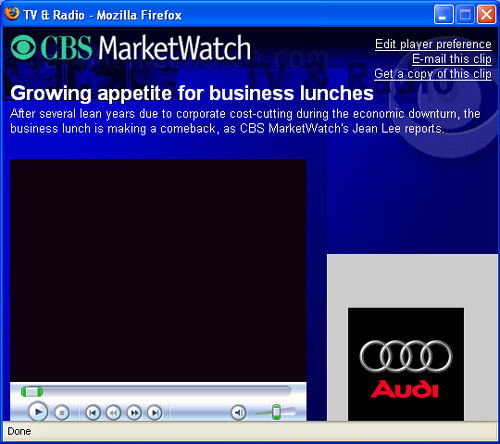
2. You can go to your favorite multimedia site (Music video site, News.com etc.) and play a movie using your WMP plugin or you can go to CBS MarketWatch. Over to the right-hand side, you will notice a TV & Radio section with a bunch of movies to play. Pick one and when prompted for player preferences, select WMP.
3. When the movie starts playing, click on ‘Print Screen’ or ‘Alt+Print Screen’
4. Open Paint program from the Accessories folder of your Start Menu (‘Start | Programs | Accessories | Paint’)
5. Click on ‘Edit | Paste’ in the Paint program.
Do you see the problem? It literally embeds the movie (I guess as an OLE object) into the Paint software. Result: You see the movie playing within Paint!. Trying to close WMP or hit the pause button on WMP before taking a screenshot would really delay the inevitable. You would soon notice that the best that you can get is this:
Solution:
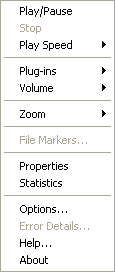
1. As soon as the Windows Media plugin loads in your browser and starts playing, hit pause, right-click on an empty region of the skin of the Windows Media player. You should see a drop-down menu similar to the one shown below. Even if it’s not exactly same, as long as you see the ‘Options…’ menu option, you’ll be fine:
2. Click on ‘Options…’ menu option which will open the Options dialog window looking something like this:
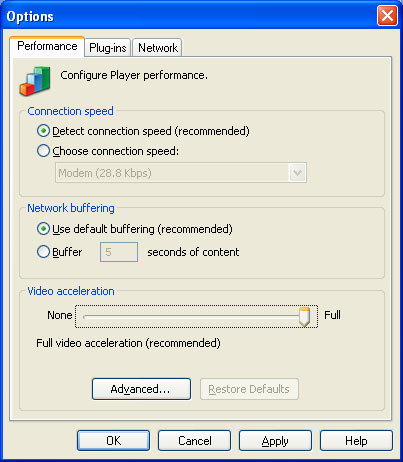
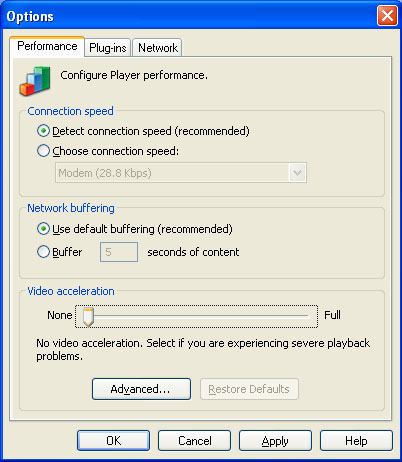
3. Notice the ‘Video Acceleration’ section. It’s set to ‘Full’. Drag the slider back so that it’s set to ‘None’. It should look like this:
4. Click on Apply. You may have to close the browser window and do the whole thing again or if you’re lucky, after churning your CPU cycles for a bit, the Windows Media player plugin will start playing the movie from the beginning with the new settings.
5. With the movie playing, click ‘Print Screen’ or ‘Alt+Print Screen’ at the point in the movie where you would like to capture a still image
6. Open the Paint program (as explained previously) and paste the content from the clipboard. Voila! The result would be something like:
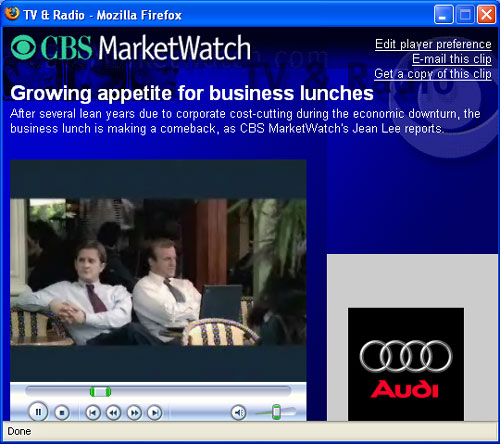
7. When you’re done capturing your still image, do not forget to reset your WMP ‘Video Acceleration’ settings back to ‘Full’. It’s the recommended mode.
Note:
1. Microsoft seems to have fixed this problem in their latest version (Version 10.0) of Windows Media Player. Meaning, pressing the ‘Print Screen’ or the ‘Alt+Print Screen’ will capture the still image to the clipboard and pasting it in programs like ‘Paint’ would not cause the movie object itself to be embedded (or whatever the hell it was doing in 8.x/9.x).
2. Thanks to Mark Salloway’s Resource Center for pointing this issue (and the solution) out.
- Anand
Category: How do I?